
How to Bulk Download Videos From a TikTok Profile
To bulk download TikTok profile videos with KeepTik, open a profile in desktop Chrome or Edge, scan accessible lists, select posts and choose a folder. Keep the extension panel and TikTok tab open while the task runs. Check the scan state and the final report before treating the folder as a complete backup.
Prepare a TikTok profile for a bulk download
Install KeepTik from its official Chrome or Edge listing, then reload an already-open TikTok tab. Use a desktop browser and choose a profile whose content you are allowed to save. A visible page does not by itself grant permission to redistribute its media.
Open the KeepTik icon while the profile is in front. Choose Videos, Reposts, Favorites or Liked according to your task. The last two are often restricted to the account signed in; a list that TikTok does not expose cannot be made readable by selecting it.
For browser requirements and unsupported content, check KeepTik’s supported content before starting a long task.
Scan the accessible profile lists
Start the scan and watch each list’s status. A combined total can include a post found in more than one list, so list counts should not simply be added to predict the number of unique files.
KeepTik calls a list complete when TikTok reports its end. If you stop early or encounter a session problem, use the displayed state to decide whether to continue scanning. A partial discovery is useful, but it should not be described as every post on the account.
Select the lists
Tick the accessible lists you need, then press Scan.
Read the scan state
Wait for completion, or note that a stopped scan may have more posts remaining.
Review the discovered posts
Check the list tabs and previews before selecting a download.
Filter videos and choose the batch
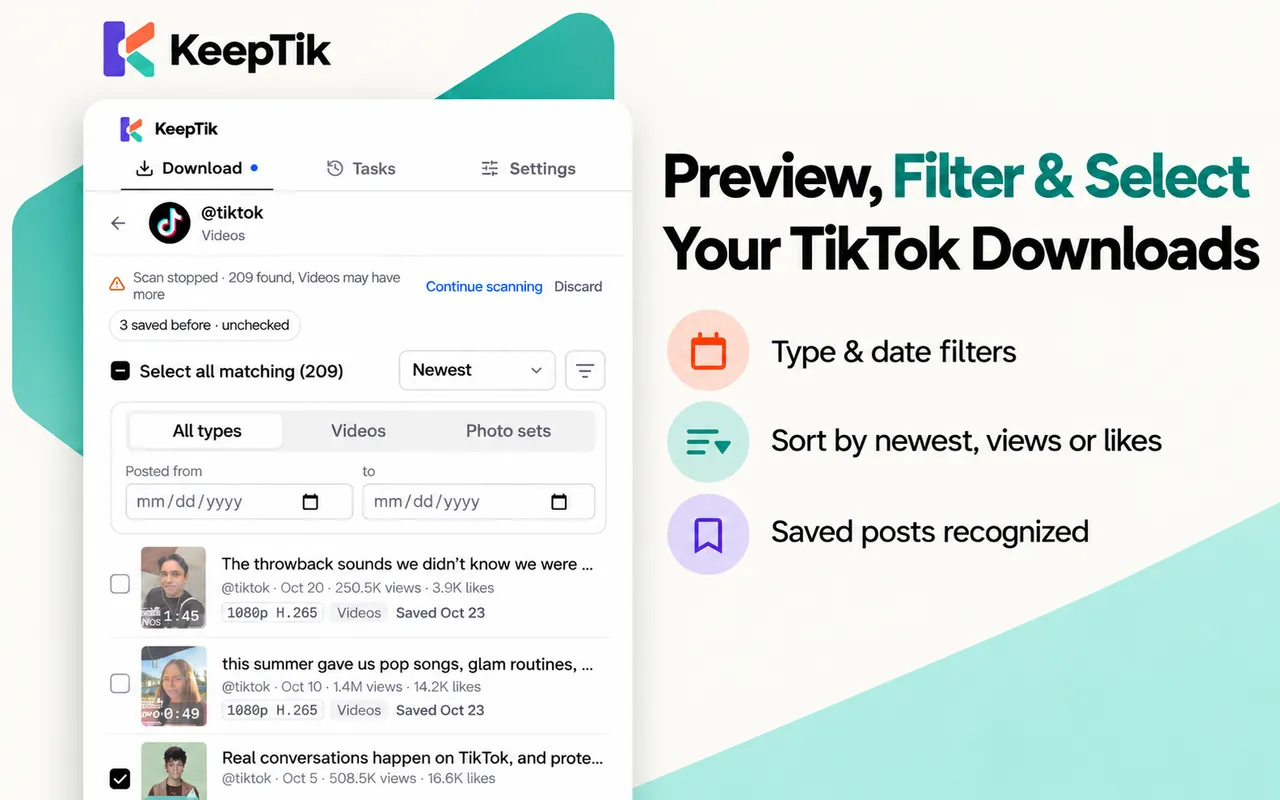
Use the list tabs to narrow the source. Open the type and date filters to show videos, photo sets or a date range. Sort by Newest, Most views or Most likes to find the posts relevant to your purpose.
Select all matching acts on matching discovered posts. Changing a filter does not necessarily clear earlier choices, so use the overall selected count at the bottom as your final check. For a first run, choose a few posts and inspect the output before relying on a larger task.
Posts recorded as previously saved and promoted posts begin unchecked. Review those choices rather than assuming that every discovered item should be downloaded.
Choose one folder and save the selected posts
Press Download and choose a destination in the browser’s folder picker. KeepTik writes the batch into profile and list subfolders. Check the selected destination carefully; this workflow differs from a single-video download into the browser’s default Downloads/KeepTik location.
Leave the KeepTik panel and the TikTok tab open while files are being written. Use Pause or Resume if you need to interrupt the queue. If TikTok requests verification or the browser needs folder access again, follow the task’s prompt instead of repeatedly starting new scans.
If you cancel the folder picker, no folder has been granted for that attempt. Return to the task and choose the destination when ready. Do not interpret a selection or a completed scan as proof that files were saved.
Check the output and export a CSV or JSON report
Read each selected post’s result. Saved, Partly saved, Failed, Skipped and Not started describe different outcomes. An unselected post may also appear in the export; its presence is not a claim that its media was downloaded.
Retry failed posts from the result screen after checking their reason. For a partly saved photo set, the retry targets missing images. Export the list as CSV or JSON to reconcile the task, then open a few saved files in the player or editor you actually intend to use.
For folder organization after downloading, read the local TikTok archive guide. For a player that cannot open an MP4, use the H.264 and H.265 guide.
What we verified in a real profile batch
On 31 October 2026, we used the installed KeepTik 1.0.0 Chrome extension on macOS with an authorized TikTok session. The native side panel completed a scan of four accessible lists: 85 unique posts from 86 list entries. We selected three videos, one each from Videos, Favorites and Liked, and saved them into a new dedicated folder under Downloads.
The result screen reported three saved posts. CSV and JSON each contained 85 discovered posts: three saved and 82 not selected, with matching post identifiers. Each saved MP4 matched a report entry and its list folder; the default path included creator information and a post ID. The report’s other entries were not additional downloaded videos.
ffprobe 9.0.2 identified the three files below. FFmpeg decoded each whole file without errors, and we inspected a sample frame from each. This is a small Chrome/macOS check, not a guarantee for every account, source, codec, player or Edge version. We did not simulate every pause or failure case.
| List | Video | Audio | Approximate duration |
|---|---|---|---|
| Videos | 576 × 1024 H.264 | AAC | 31.02 s |
| Favorites | 1080 × 1920 HEVC / H.265 | AAC | 17.34 s |
| Liked | 720 × 1280 HEVC / H.265 | AAC | 9.53 s |
Bulk TikTok download questions
Can I download every video from a TikTok account?
You can select posts discovered from lists TikTok makes accessible. Check whether the scan reached the end; deleted, inaccessible or unavailable media cannot be promised.
Does an empty list mean the account has no posts?
First check the list’s access and error state. An unreadable list is different from a readable list that returned no posts.
Why do some saved MP4 files fail to play?
MP4 is a container. Check the saved codec, then choose an available compatible source or use software that supports that codec. KeepTik does not transcode the file.