
Bulk download TikTok videos from a profile
Use KeepTik as a bulk TikTok downloader: scan the lists you can open on a profile, pick the posts you want, and download them into one folder — with a clear result for every post.
Desktop Chrome 116 or later
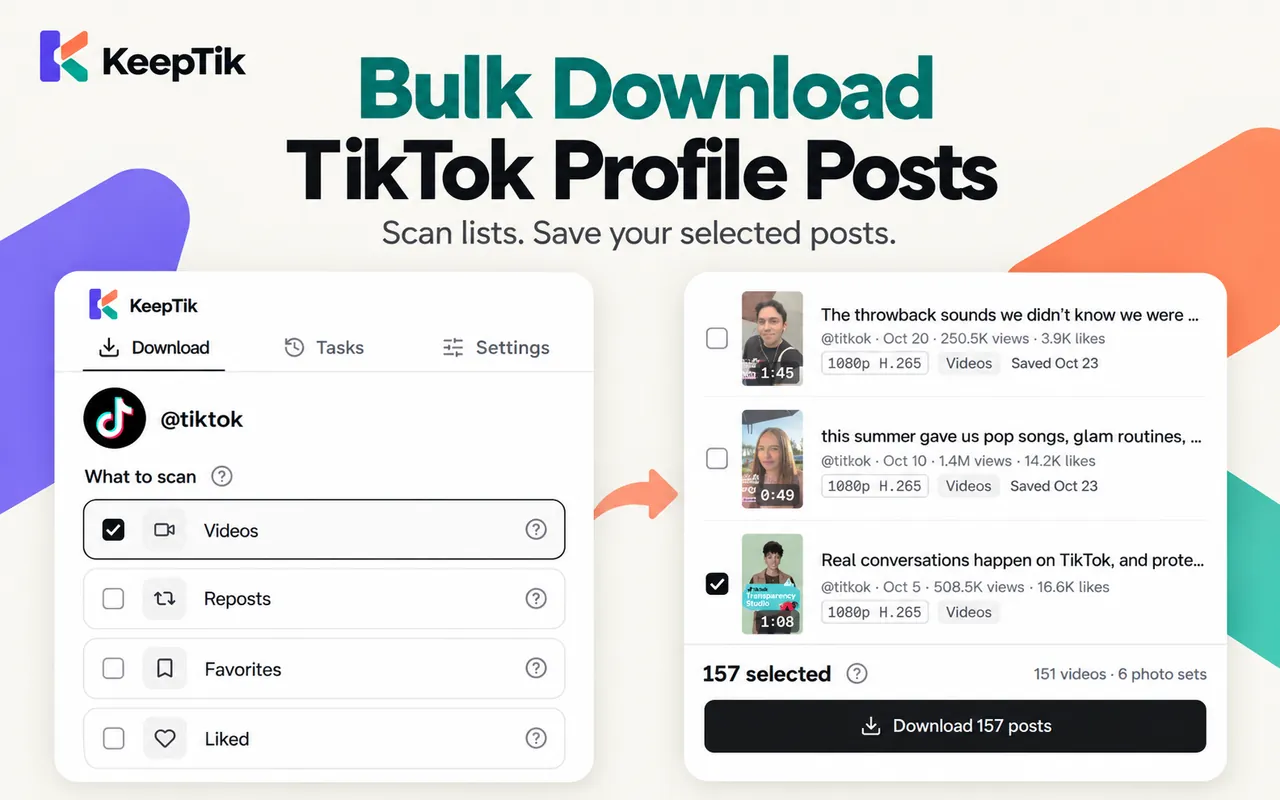
Four lists in one scan
Videos, Reposts, Favorites and Liked. KeepTik says whether each list was scanned to the end.
Pick before you download
Filter by type and date, sort by newest, views or likes, and tick exactly the posts you want.
One folder, no pop-ups
Choose a folder once. Every file goes straight in, with no save dialog for each file.
Scan the lists you can open on a profile
Open a TikTok profile in desktop Chrome and click the KeepTik icon. The side panel lists Videos, Reposts, Favorites and Liked; tick the ones to scan. KeepTik reads them through your own TikTok session, page by page, and shows how many posts it has found.
Liked and Favorites are private by default, so they can only be read when TikTok makes them available to the account you’re signed in with — usually your own profile. A list KeepTik can’t read is shown as “Couldn’t read this list” instead of silently coming back empty.
- A list is “Scan complete” only when TikTok reports its end.
- Stop a scan early and keep what was found; KeepTik notes that more posts may exist.
- One task runs at a time, across all your TikTok tabs and windows.
Preview, filter and pick your posts
Every post shows its thumbnail, caption, date, views, likes, length and the best available resolution and codec. Filter by type (videos or photo sets) and by posting date, sort by newest, most views or most likes, then use “Select all matching” or tick posts one by one.
Filters only change what you see — your selection stays the same, and the footer always shows how many posts are selected overall.
- Posts you saved before stay unchecked, so you don’t download them twice.
- Promoted posts stay unchecked.
- Posts TikTok no longer serves can’t be selected.
Choose a folder once, then let it run
When you click Download, Chrome asks you to pick a folder — once for the whole batch. KeepTik then writes each file straight into it, in subfolders for the profile and list, so there’s no save dialog per file even if Chrome is set to ask where to save.
A post that appears in several lists is downloaded once, into the first of Videos, Reposts, Favorites and Liked. The report still records every list it belongs to.
Pause, resume and retry failed posts
The queue shows live progress and an estimate of the time left. Pause and resume at any time, and retry the posts that failed once the batch ends. A failed post never stops the rest of the queue.
If TikTok rate-limits the session, KeepTik waits out the cooldown and continues, and it picks up again when your connection returns. If TikTok asks for a verification, or Chrome needs access to the folder again, the task pauses and tells you what to do.
- Set the download pace and how many retries each post gets.
- Skip videos longer than a length you choose.
- Closing the side panel pauses the task; reopen it on the same tab to continue.
A result for every post, exportable as CSV or JSON
Each file is checked for size and format before it counts as saved. When the batch ends, every post you selected is saved, partly saved, failed, skipped or not started — and posts you left out are listed as not selected — each with a reason.
Export the whole list as CSV or JSON into the same folder: post ID and link, creator, date, caption, hashtags, views, likes, length, resolution, codec, lists, file names, status and reason.
Questions, answered plainly.
What KeepTik does, what it doesn’t, and what TikTok still decides.
Can I download every video from a TikTok profile?
You can scan the profile’s Videos list (plus Reposts, Favorites and Liked when TikTok shows them to you) and download the posts you select. KeepTik tells you whether each list was scanned to the end, so you know if anything may be missing.
Does bulk download save the videos without watermark?
Yes. Each video is the stream TikTok plays, saved without watermark. If a post is only available as TikTok’s watermarked copy, it’s marked — or skipped, if you set that in Settings.
What happens if TikTok limits my downloads?
KeepTik waits for the cooldown and continues on its own (you can turn that off). If TikTok asks for a verification, the task pauses until you’ve handled it in the TikTok tab.
Can I close the side panel while it downloads?
Closing the side panel pauses the task, and KeepTik shows a notice on the TikTok page. Reopen the panel on the same tab to resume where it stopped.
Will it download posts I already saved?
Posts you saved before are left unchecked, so they’re skipped unless you tick them. KeepTik remembers what it saved in your browser; it doesn’t scan your disk.
Turn a profile into a folder.
Scan the lists, pick your posts, download them in one batch — and see exactly what saved.
Desktop Chrome 116 or later